Scaffold Umbraco V14+ Package Development Project with Vite, TypeScript & Lit

Heya 👋
I wanted to share a quick Powershell script I created to help me scaffold a new project for Umbraco packages developed for V14.

As there are quite a few steps to create the projects and setup the client side tooling with Vite and removing unnecessary files & npm scripts that are not needed.

Just show me the script already

## Setup of an Umbraco V14+ project with Vite, TypeScript & Lit
## Author: Warren Buckley
## HackMakeDo.com

## if project name is not provided, ask for it
if (-not $ProjectName) {
    $ProjectName = Read-Host "Enter a project name"
}

## Variables
$ProjectName = $ProjectName.Replace(" ", ".")
$ProjectNameLower = $ProjectName.ToLower()
$WebsiteProjectName = $ProjectName + '.Website'
$WebsiteProjectCSProj = $WebsiteProjectName + '.csproj'
$RCLProjectName = $ProjectName
$RCLProjectCSProj = $RCLProjectName + '.csproj'
$ClientProjectName = $ProjectName + '.Client'

## Folder Paths
$RootFolder = $PSScriptRoot
$WebsiteProjectPath = Join-Path -Path $PSScriptRoot -ChildPath $WebsiteProjectName
$WebsiteCSProjPath = Join-Path -Path $WebsiteProjectPath -ChildPath $WebsiteProjectCSProj
$RCLProjectPath = Join-Path -Path $PSScriptRoot -ChildPath $RCLProjectName
$RCLCSProjPath = Join-Path -Path $RCLProjectPath -ChildPath $RCLProjectCSProj
$ClientProjectPath = Join-Path -Path $PSScriptRoot -ChildPath $ClientProjectName

## LETS GO !!
## Create a default gitignore file
dotnet new gitignore

## Create a new solution
dotnet new sln -n $ProjectName

## Install Umbraco Templates
dotnet new install Umbraco.Templates

## Create a new project that is a website
dotnet new umbraco -n $WebsiteProjectName

## Create the RCL project for the C# and clienside stuff
dotnet new umbracopackage-rcl -n $ProjectName

## Add the website project to the solution
dotnet sln add $WebsiteCSProjPath

## Add the RCL project to the solution
dotnet sln add $RCLCSProjPath

## Delete the wwwroot/umbraco-package.json file
## The Vite setup will add this file from the client folder stuff
Remove-Item -Path "$RCLProjectPath/wwwroot/umbraco-package.json"

## Add the RCL project to the Website project as a project reference
dotnet add $WebsiteCSProjPath reference $RCLCSProjPath

## Create Vite TypeScript & Lit setup
## For vite to be happy it needs to be lowercase
npx create-vite@latest $ClientProjectName.ToLower() --template lit-ts

## Delete the files from vite setup we dont need
Remove-Item -Path "$ClientProjectPath/public/vite.svg"
Remove-Item -Path "$ClientProjectPath/src/assets" -Recurse
Remove-Item -Path "$ClientProjectPath/src/index.css"
Remove-Item -Path "$ClientProjectPath/src/my-element.ts"
Remove-Item -Path "$ClientProjectPath/index.html"

## create vite.config.ts
$ViteConfig = @"
import { defineConfig } from "vite";

export default defineConfig({
    build: {
        lib: {
            entry: "src/index.ts", // Entrypoint file (registers other manifests)
            formats: ["es"],
            fileName: "$ProjectNameLower",
        },
        outDir: "../$RCLProjectName/wwwroot", // your web component will be saved to the RCL project location and the RCL sets the path as App_Plugins/$ProjectName
        emptyOutDir: true,
        sourcemap: true,
        rollupOptions: {
            external: [/^@umbraco/],
        },
    },
});
"@
$ViteConfigPath = Join-Path -Path $ClientProjectPath -ChildPath "vite.config.ts"
$ViteConfig | Out-File -FilePath $ViteConfigPath -Encoding utf8

## create umbraco-package.json
$UmbracoPackageJson = @"
{
    "`$schema": "../../$WebsiteProjectName/umbraco-package-schema.json",
    "id": "$ProjectNameLower",
    "name": "$ProjectName",
    "allowPackageTelemetry": true,
    "version": "1.0.0",
    "extensions": [
        {
          "name": "$ProjectName EntryPoint",
          "alias": "$ProjectNameLower.entrypoint",
          "type": "backofficeEntryPoint",
          "js": "/app_plugins/$RCLProjectName/$ProjectNameLower.js"
        }
      ]
}
"@
$UmbracoPackageJsonPath = Join-Path -Path $ClientProjectPath -ChildPath "/public/umbraco-package.json"
$UmbracoPackageJson | Out-File -FilePath $UmbracoPackageJsonPath -Encoding utf8

## inside src folder create index.ts
## Its an entrypoint file to register manifests
$IndexTs = @"
import { UmbEntryPointOnInit } from '@umbraco-cms/backoffice/extension-api';
export const onInit: UmbEntryPointOnInit = (_host, _extensionRegistry) => {

    console.log('Hello from $ProjectName!');

    // We can register many manifests at once via code 
    // as opposed to a long umbraco-package.json file
    // _extensionRegistry.registerMany([
    //     ...entityActionManifests,
    //     ...modalManifests
    // ]);
};
"@
$IndexTsPath = Join-Path -Path $ClientProjectPath -ChildPath "src/index.ts"
$IndexTs | Out-File -FilePath $IndexTsPath -Encoding utf8

## Add .vscode folder and recommended lit extension
New-Item -Path "$ClientProjectPath/.vscode" -ItemType Directory
$ExtensionsJson = @"
{
    "recommendations": [
        "runem.lit-plugin"
    ]
}
"@
$ExtensionsJsonPath = Join-Path -Path $ClientProjectPath -ChildPath ".vscode/extensions.json"
$ExtensionsJson | Out-File -FilePath $ExtensionsJsonPath -Encoding utf8


## update package.json scripts section
## Remove 'dev' and 'preview' scripts
## Add 'watch' script with 'vite build --watch'
$PackageJsonPath = Join-Path -Path $ClientProjectPath -ChildPath "package.json"
$PackageJson = Get-Content -Path $PackageJsonPath | ConvertFrom-Json
$PackageJson.scripts.PSObject.Properties.Remove("dev")
$PackageJson.scripts.PSObject.Properties.Remove("preview")
$PackageJson.scripts | Add-Member -MemberType NoteProperty -Name "watch" -Value "vite build --watch" -Force
$PackageJson | ConvertTo-Json | Out-File -FilePath $PackageJsonPath -Encoding utf8

## Change directory to JS proj
Set-Location -Path $ClientProjectPath

## Need to run 'npm install --save-dev @umbraco-cms/backoffice'
npm install --save-dev @umbraco-cms/backoffice

## Compile the TS to JS & it will copy it out to the RCL project in the wwwroot folder
npm run build

## Build the VS solution (building will generate the JSON schema for umbraco-package.json that we reference)
Set-Location -Path $RootFolder
dotnet build

A link to a GitHub Gist for the PowerShell script is available here
https://gist.github.com/warrenbuckley/a799a14562a8d8f5be2bf7c6671dc547

What does it do?

Hopefully the comments within the script are kinda self explanatory, however as a quick overview it does the following

  • Creates a gitignore file
  • Creates a new Solution named from the project input given to the script
  • Installs the latest Umbraco.Templates from Nuget so its always upto date
  • Creates a new Umbraco Website project named ProjectName.Website that we will use as the testing site of our package code
  • Creates a new Umbraco RCL project called ProjectName
  • Remove the umbraco=package.json file from the RCL project as we will use Vite and the Javascript client to copy this in
  • Adds the two projects to the Solution
  • Adds a reference to the RCL project to the Website project to help test out our work
  • Uses Vite to scaffold a template for using Lit with TypeScript
  • Removes files we do not need from Vite, such as their SVG logo and other files
  • Creates a vite.config.ts to tell Vite about our entrypoint file and to place the build output into the RCL projects wwwroot folder
  • Creates an umbraco-package.json file that will be copied to the RCL wwwroot folder that uses the entrypoint approach of registering further manifests with code
  • Creates the index.ts entrypoint file which allows us to register more manifests into Umbraco
  • Removes the dev and preview NPM scripts from Vite template
  • Adds a new NPM script to watch the TypeScript files and to recompile the bundle as needed
  • Installs the @umbraco-cms/backoffice NPM package to get completions and typings for our codebase
  • And finally does a build of the dotnet solution
  • Phew…. that was a lot of steps

As you can see its quite a few steps to get up and running hence the script was born.

How to create an Umbraco v14 (Belissima) SVG Icon Pack with Node.js

With Umbraco V14 aka the entirely rebuilt Umbraco backoffice with modern JS and WebComponents, with its options to extend the backoffice in various number of ways. One of them being that we can provide a set of SVG icons that Umbraco can use and consume for other extension points to use or that we can make more SVG icons to pick and choose from the icon picker when you are using it to help visually identify your document types to your content editors.

In this blog post, we’ll walk through the process of creating an Umbraco SVG icon pack using a Node.js script to help make things easier for ourselves.

Summary of adding an icon

To register one or more icons with Umbraco we need to do the following steps:

  • The SVG icon needs to be stored and exported as a string in a Javascript file
  • Remember that each SVG needs its own separate JS file
  • A simple array of objects of your icons, that contains the path to the JS file containing the SVG string and a name property.
  • An umbraco-package.json manifest that registers the icon pack

But by doing this all manually by hand could be cumbersome, especially when an icon set could have hundreds of icons and thus we automate it with an NodeJS script to help us.

Show me the code already !

OK lets jump straight into this and take a look at the code.

import { readdir, readFileSync, writeFileSync, existsSync, mkdirSync } from 'fs';
import * as path from 'path';

// Directory where to look for SVGs
// This is the NPM package directory where the SVGs are stored
const svgDirectory = path.join('node_modules', 'iconoir', 'icons', 'regular');

const run = async () => {
    
	console.log(`Finding icons for icon pack in directory: '${svgDirectory}'`);

    // Construct the path to the JSON file
    const jsonFilePath = path.join('node_modules', 'iconoir', 'package.json');

    // Read the file and parse its contents
    const jsonData = JSON.parse(readFileSync(jsonFilePath, 'utf8'));
    const version = jsonData.version;
    console.log('Iconoir NPM Version', version);

    const buildTime = new Date().toISOString();

    // Read all .svgs in the directory
    const iconFiles = readdir(svgDirectory, (err, files) => {
        if (err) {
            console.error('Could not read directory', err);
            return;
        }

        const svgFiles = files.filter(file => path.extname(file) == ".svg");
        const svgFileCount = svgFiles.length;
        console.log(`Found ${svgFileCount} .svg files in directory`);

        if(svgFileCount === 0) {
            console.error('No .svg files found in directory');
            return;
        }

        GenerateSvgJsModules(svgFiles, buildTime, version);

        GenerateIconDictionary(svgFiles, buildTime, version);

        UpdateUmbracoPackageVersionWithNpmVersion(version);
    });    
};

function GenerateSvgJsModules(svgFileNames, buildTime, version) {

    console.log('Generating inline icon svgs in JS modules');

    // Ensure folder exists
    if (!existsSync('./public/Iconoir')){
        console.log('Creating directory: ./public/Iconoir');
        mkdirSync('./public/Iconoir', { recursive: true })
    }
    
    svgFileNames.forEach(svgFile => {
        // Open the file and read the content
        // svgDirectory + svgFile = full path to the file
        const filePath = path.join(svgDirectory, svgFile);
        let fileContent = readFileSync(filePath, 'utf8');

        // Remove width and height attributes from the SVG
        fileContent = fileContent.replace('width="24"', '');
        fileContent = fileContent.replace('height="24"', '');

        // Create a new .js module file with the svg content
        const baseName = path.basename(svgFile, '.svg');
        const jsFilePath = `./public/Iconoir/${baseName}.js`;
        const jsFileContent = `// This file is automatically generated by 'npm run build:iconpack'
// Generated at ${buildTime}
// Iconoir NPM Version: ${version}
export default \`${fileContent}\`;`;

        // Write the content to the .js file
        writeFileSync(jsFilePath, jsFileContent, (err) => {
            if (err) {
                console.error('Error writing file:', err);
            }
        });
    });
};

function GenerateIconDictionary(svgFileNames, buildTime, version){

    console.log('Generating icon dictionary .ts file');
    
    // Initialize an empty array for the icon dictionary
    const icons = [];

    // Iterate over the SVG file names
    svgFileNames.forEach(fileName => {
        // Remove the .svg extension from the file name
        const baseName = path.basename(fileName, '.svg');

        // Create an object for the icon
        const icon = {
            name: `iconoir-${baseName}`,
            path: `/App_Plugins/Umbraco.IconPack.Iconoir/Iconoir/${baseName}.js`,
        };

        // Add the icon object to the icon dictionary
        icons.push(icon);
    });

    // Convert the icons array into a string
    const iconArrayString = JSON.stringify(icons, null, 2);

    // Create the content for the icons.ts file
    const fileContent = `// This file is automatically generated by 'npm run build:iconpack'
// Generated at ${buildTime}
// Iconoir NPM Version: ${version}
import { UmbIconDictionary } from "@umbraco-cms/backoffice/icon";

const icons: UmbIconDictionary = ${iconArrayString};
export default icons;`;


    // Write the content to the icons.ts file
    writeFileSync('./src/IconPacks/icons.ts', fileContent, (err) => {
        if (err) {
            console.error('Error writing file:', err);
        }
    });
}

function UpdateUmbracoPackageVersionWithNpmVersion(version) {
    // Construct the path to the JSON file
    const jsonFilePath = path.join('public', 'umbraco-package.json');

    // Read the file and parse its contents
    const jsonData = JSON.parse(readFileSync(jsonFilePath, 'utf8'));

    // Update the version in the JSON object
    jsonData.version = version;

    // Save the JSON back down to a file
    writeFileSync(jsonFilePath, JSON.stringify(jsonData, null, 2), (err) => {
        if (err) {
            console.error('Error writing file:', err);
        }
    });
}

run();

Understanding the Script

The script starts by importing necessary modules from Node.js’s fs and path libraries. It then defines the directory where it will look for SVG files.

The run function is where the magic happens. It starts by logging the directory it’s looking in for icons. It then reads and parses the package.json file to get the version of Iconoir and it also gets the current build time to use as a comment to add to the files we generate.

We then have three main functions that are doing different tasks.

The first GenerateSvgJsModules is looping over each SVG found in the Iconoir NPM package, opening the file to read the SVG contents and then writing this back to a new Javascript file with the build time header as part of the file contents. When reading the SVG file we remove any explicit width and height attributes set on the main SVG element that Iconoir has set to ensure this looks correct in the Umbraco backoffice.

The second function GenerateIconDictionary is creating a single file that the Umbraco package manifest for an icon set uses. It builds up an array of objects with two properties, name and path with the name being the icon name that can be used to search/filter the list of icons from inside Umbracos icon picker dialog and the path property is the path to each JS file that contains the SVG string that has been exported in the GenerateSvgJsModules step above.

The final function UpdateUmbracoPackageVersionWithNpmVersion is used to keep the umbraco-version.json in sync with the version of the icons from Iconoir and their NPM version of the package. With the idea that when Iconoir do future release I can create a package with the same version in order to make it easier to know what icons are available to use.

So with this hopefully you understand the approach on how I created an icon pack for Umbraco.

Presenting Iconoir for Umbraco

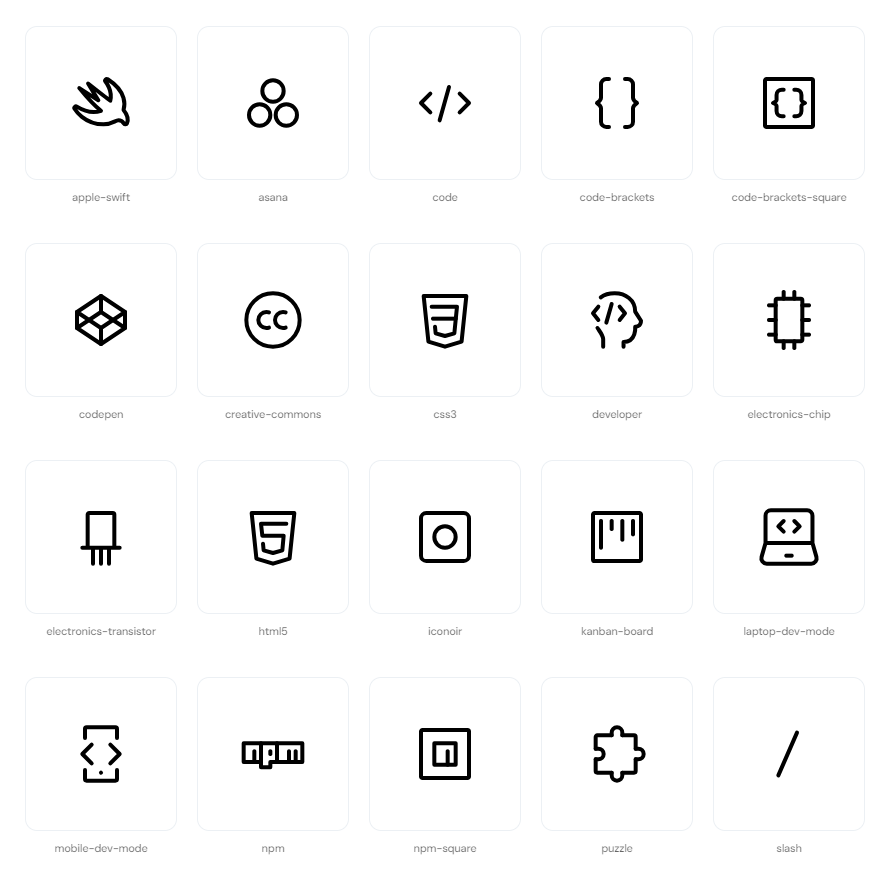
So with this I created the first icon pack for Umbraco V14 using the Open Source MIT licensed SVG icons from Iconoir and you can go and grab it for Umbraco V14 now to have some more icons and choice for setting a document type icon.

A sample of icons from the Iconoir icon set