
With Umbraco V14 aka the entirely rebuilt Umbraco backoffice with modern JS and WebComponents, with its options to extend the backoffice in various number of ways. One of them being that we can provide a set of SVG icons that Umbraco can use and consume for other extension points to use or that we can make more SVG icons to pick and choose from the icon picker when you are using it to help visually identify your document types to your content editors.
In this blog post, we’ll walk through the process of creating an Umbraco SVG icon pack using a Node.js script to help make things easier for ourselves.
Summary of adding an icon
To register one or more icons with Umbraco we need to do the following steps:
- The SVG icon needs to be stored and exported as a string in a Javascript file
- Remember that each SVG needs its own separate JS file
- A simple array of objects of your icons, that contains the path to the JS file containing the SVG string and a name property.
- An umbraco-package.json manifest that registers the icon pack
But by doing this all manually by hand could be cumbersome, especially when an icon set could have hundreds of icons and thus we automate it with an NodeJS script to help us.
Show me the code already !
OK lets jump straight into this and take a look at the code.
import { readdir, readFileSync, writeFileSync, existsSync, mkdirSync } from 'fs';
import * as path from 'path';

// Directory where to look for SVGs
// This is the NPM package directory where the SVGs are stored
const svgDirectory = path.join('node_modules', 'iconoir', 'icons', 'regular');

const run = async () => {

	console.log(`Finding icons for icon pack in directory: '${svgDirectory}'`);

    // Construct the path to the JSON file
    const jsonFilePath = path.join('node_modules', 'iconoir', 'package.json');

    // Read the file and parse its contents
    const jsonData = JSON.parse(readFileSync(jsonFilePath, 'utf8'));
    const version = jsonData.version;
    console.log('Iconoir NPM Version', version);

    const buildTime = new Date().toISOString();

    // Read all .svgs in the directory
    const iconFiles = readdir(svgDirectory, (err, files) => {
        if (err) {
            console.error('Could not read directory', err);
            return;
        }

        const svgFiles = files.filter(file => path.extname(file) == ".svg");
        const svgFileCount = svgFiles.length;
        console.log(`Found ${svgFileCount} .svg files in directory`);

        if(svgFileCount === 0) {
            console.error('No .svg files found in directory');
            return;
        }

        GenerateSvgJsModules(svgFiles, buildTime, version);

        GenerateIconDictionary(svgFiles, buildTime, version);

        UpdateUmbracoPackageVersionWithNpmVersion(version);
    });
};

function GenerateSvgJsModules(svgFileNames, buildTime, version) {

    console.log('Generating inline icon svgs in JS modules');

    // Ensure folder exists
    if (!existsSync('./public/Iconoir')){
        console.log('Creating directory: ./public/Iconoir');
        mkdirSync('./public/Iconoir', { recursive: true })
    }

    svgFileNames.forEach(svgFile => {
        // Open the file and read the content
        // svgDirectory + svgFile = full path to the file
        const filePath = path.join(svgDirectory, svgFile);
        let fileContent = readFileSync(filePath, 'utf8');

        // Remove width and height attributes from the SVG
        fileContent = fileContent.replace('width="24"', '');
        fileContent = fileContent.replace('height="24"', '');

        // Create a new .js module file with the svg content
        const baseName = path.basename(svgFile, '.svg');
        const jsFilePath = `./public/Iconoir/${baseName}.js`;
        const jsFileContent = `// This file is automatically generated by 'npm run build:iconpack'
// Generated at ${buildTime}
// Iconoir NPM Version: ${version}
export default \`${fileContent}\`;`;

        // Write the content to the .js file
        writeFileSync(jsFilePath, jsFileContent, (err) => {
            if (err) {
                console.error('Error writing file:', err);
            }
        });
    });
};

function GenerateIconDictionary(svgFileNames, buildTime, version){

    console.log('Generating icon dictionary .ts file');

    // Initialize an empty array for the icon dictionary
    const icons = [];

    // Iterate over the SVG file names
    svgFileNames.forEach(fileName => {
        // Remove the .svg extension from the file name
        const baseName = path.basename(fileName, '.svg');

        // Create an object for the icon
        const icon = {
            name: `iconoir-${baseName}`,
            path: `/App_Plugins/Umbraco.IconPack.Iconoir/Iconoir/${baseName}.js`,
        };

        // Add the icon object to the icon dictionary
        icons.push(icon);
    });

    // Convert the icons array into a string
    const iconArrayString = JSON.stringify(icons, null, 2);

    // Create the content for the icons.ts file
    const fileContent = `// This file is automatically generated by 'npm run build:iconpack'
// Generated at ${buildTime}
// Iconoir NPM Version: ${version}
import { UmbIconDictionary } from "@umbraco-cms/backoffice/icon";

const icons: UmbIconDictionary = ${iconArrayString};
export default icons;`;


    // Write the content to the icons.ts file
    writeFileSync('./src/IconPacks/icons.ts', fileContent, (err) => {
        if (err) {
            console.error('Error writing file:', err);
        }
    });
}

function UpdateUmbracoPackageVersionWithNpmVersion(version) {
    // Construct the path to the JSON file
    const jsonFilePath = path.join('public', 'umbraco-package.json');

    // Read the file and parse its contents
    const jsonData = JSON.parse(readFileSync(jsonFilePath, 'utf8'));

    // Update the version in the JSON object
    jsonData.version = version;

    // Save the JSON back down to a file
    writeFileSync(jsonFilePath, JSON.stringify(jsonData, null, 2), (err) => {
        if (err) {
            console.error('Error writing file:', err);
        }
    });
}

run();
Understanding the Script
The script starts by importing necessary modules from Node.js’s fs and path libraries. It then defines the directory where it will look for SVG files.
The run function is where the magic happens. It starts by logging the directory it’s looking in for icons. It then reads and parses the package.json file to get the version of Iconoir and it also gets the current build time to use as a comment to add to the files we generate.
We then have three main functions that are doing different tasks.
The first GenerateSvgJsModules is looping over each SVG found in the Iconoir NPM package, opening the file to read the SVG contents and then writing this back to a new Javascript file with the build time header as part of the file contents. When reading the SVG file we remove any explicit width and height attributes set on the main SVG element that Iconoir has set to ensure this looks correct in the Umbraco backoffice.
The second function GenerateIconDictionary is creating a single file that the Umbraco package manifest for an icon set uses. It builds up an array of objects with two properties, name and path with the name being the icon name that can be used to search/filter the list of icons from inside Umbracos icon picker dialog and the path property is the path to each JS file that contains the SVG string that has been exported in the GenerateSvgJsModules step above.
The final function UpdateUmbracoPackageVersionWithNpmVersion is used to keep the umbraco-version.json in sync with the version of the icons from Iconoir and their NPM version of the package. With the idea that when Iconoir do future release I can create a package with the same version in order to make it easier to know what icons are available to use.
So with this hopefully you understand the approach on how I created an icon pack for Umbraco.
Presenting Iconoir for Umbraco
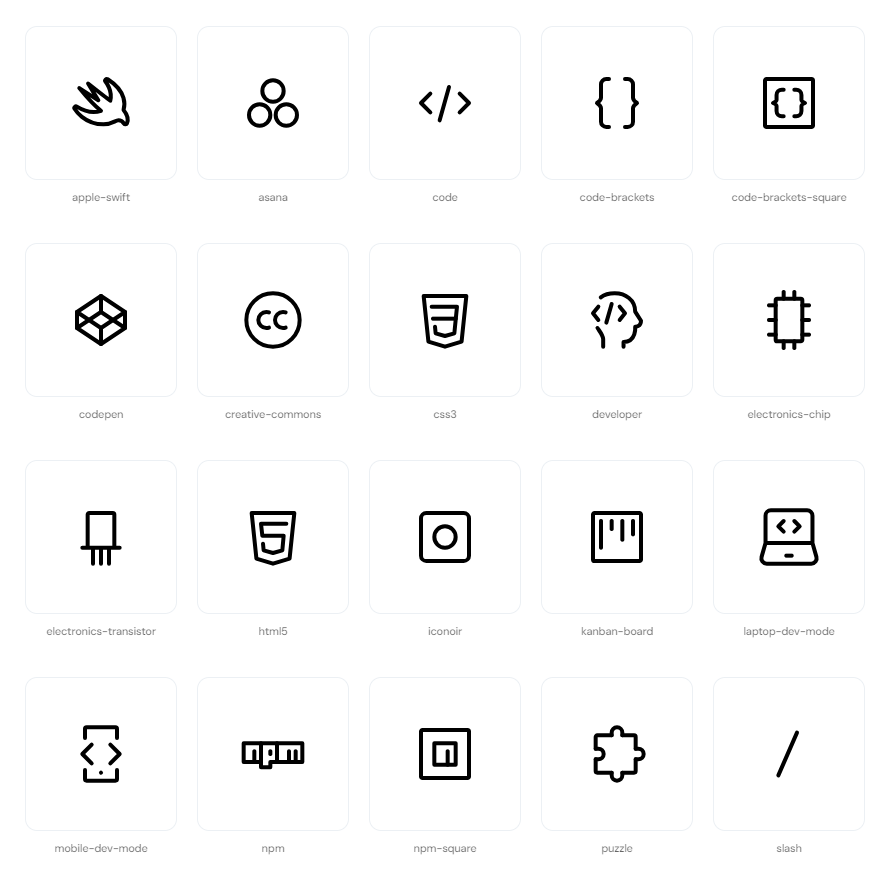
So with this I created the first icon pack for Umbraco V14 using the Open Source MIT licensed SVG icons from Iconoir and you can go and grab it for Umbraco V14 now to have some more icons and choice for setting a document type icon.
 Hack Make Do